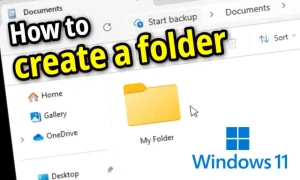
To create a folder, follow the following steps:
1: navigate to the location where you want to create the folder. Typically this means you'll open the file explorer and navigate to a folder where you'll create the folder (in other words, you'll create a sub-folder). It's also possible to create a folder on your desktop.
2: right click on an empty area on the location to display the location's context menu.

Note: if you right click on an icon, the context menu OF THE ICON will be displayed, e.g. of the file or of the folder represented by that icon. We want to display the context menu OF THE LOCATION. This means we can't right click on an icon. We must right click on an empty space instead.
3: click on the the option New -> Folder in the context menu. This will create a new folder at the location, which will probably be named "New folder" by default. It's likely that the folder's name will be automatically selected, allowing you to start typing a new name for the folder right away to rename it.

Note: if you can't find the option to create a new folder in the context menu, it's possible that you're browsing a location where it's not possible to create a new folder. For example, on Windows 11, there is a location called "Home" with some folders in it, but it's not possible to create a new folder there.
Note: what options appear in the "New" submenu depends on what applications you have installed. For example, if you install LibreOffice, you get options labelled "OpenDocument Text" and so on.
4: give the folder an appropriate name, then press the Enter key or click on an empty space to apply the new name.
